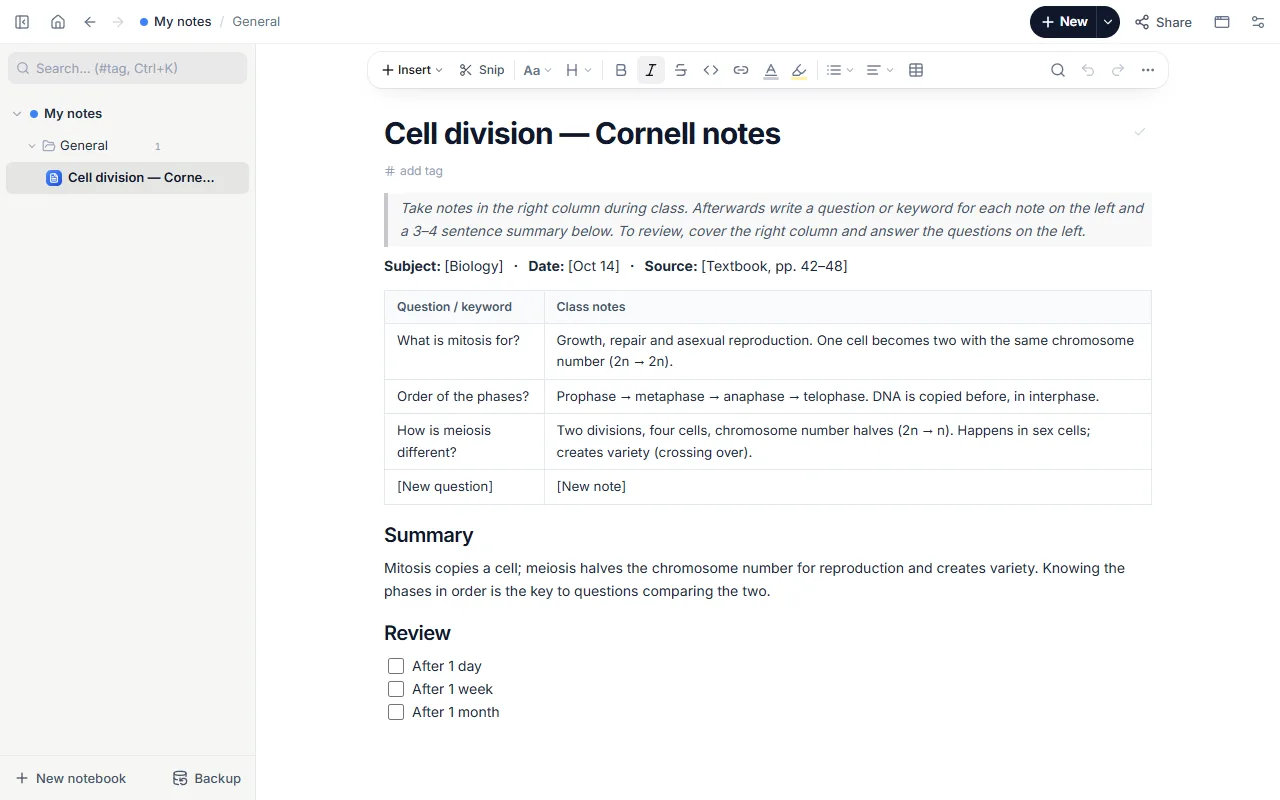
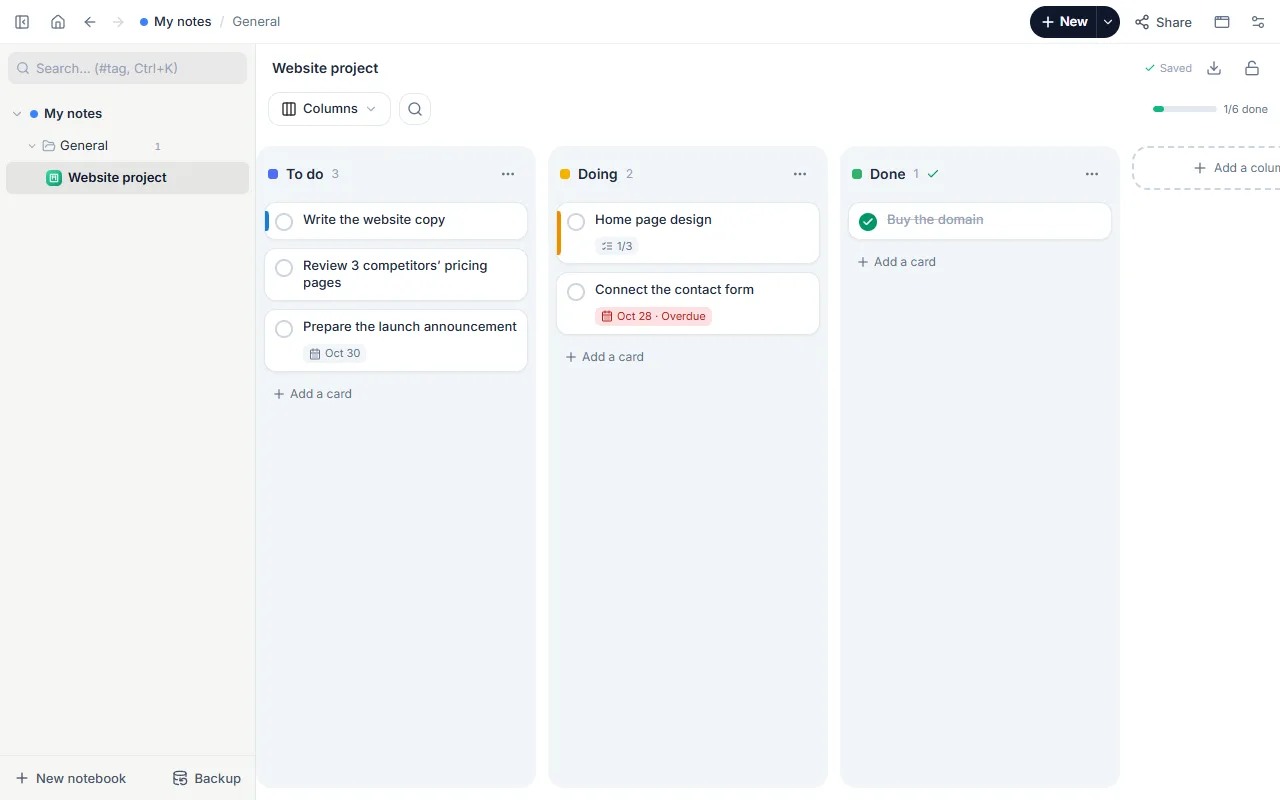
WebPad
What’s inside
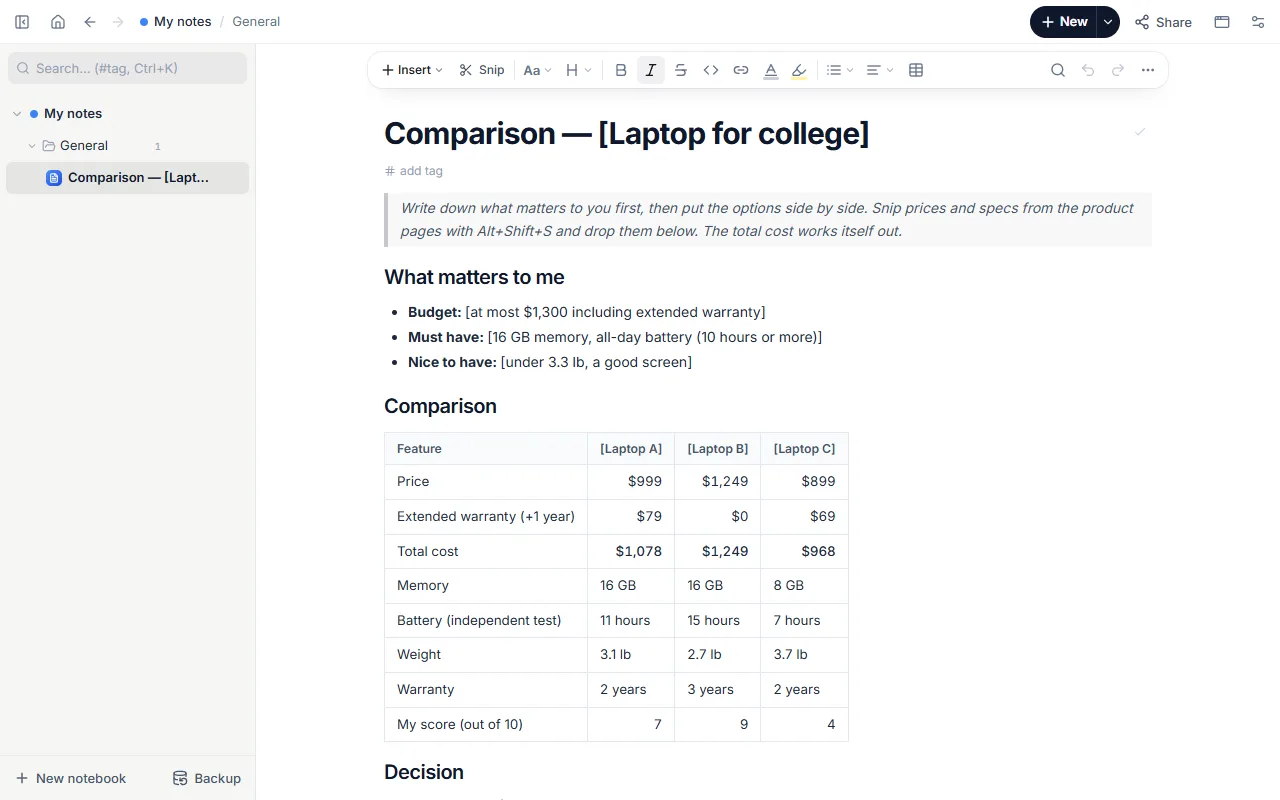
- Budget, must-haves and nice-to-haves
- A table comparing three laptops; total cost with extended warranty works itself out
- Decision and why
- Snipped product pages
How to use it
- Open the template and name the options in the column headers.
- Fill “What matters to me” first: budget, must-have features.
- Snip price and specs from each product page and copy them into the table.
- Write the decision and why; you can turn the table into a chart too.
Tips that help
- Order the feature rows by importance; the top three often decide on their own.
- Add hidden costs to the price: shipping, warranty, accessories.
- A snip keeps its date: if the price changes you still see what you decided on.
Questions
Do I need the extension to snip?
Snipping part of a page needs the Chrome extension. In the web version fill in the table and add links and screenshots by hand.
Is it free? Do I need an account?
Free, and no account. “Start with this template” opens it in the WebPad Studio web version, ready to write in.
Where is what I write saved?
In your browser’s own storage, on your device only. If you like, back it up to your own Google Drive and sync it across devices; there is no server of ours.
Can I download it as PDF or Word?
Yes. Text pages download as PDF and Word, drawings save as images, and you can share a page with a link.