WebPad
What’s inside
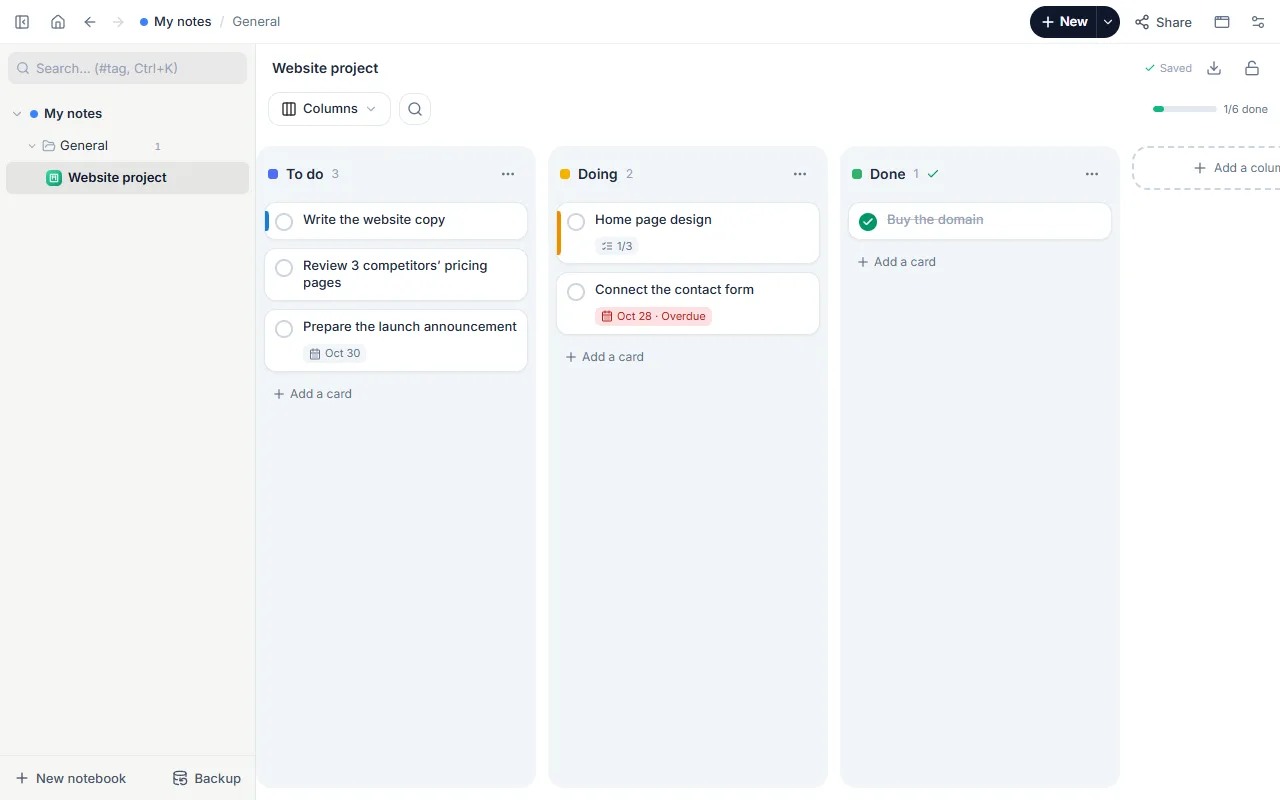
- Three columns: To do, Doing, Done
- Example cards with steps, dates and colours
- Add, drag, and switch to a week view
How to use it
- Open the template; you’ll see the cards of an example website project.
- Delete or overwrite the examples; each card should be one task you can finish.
- When you start a task, drag its card to “Doing”, then to “Done”.
- Break big tasks into steps inside the card; progress shows on the card.
- For tasks with dates, switch to the week view: the cards line up on days.
Tips that help
- Keep “Doing” short: 2–3 tasks at a time. Starting a lot and finishing little is exactly what kanban is meant to fix.
- Start card titles with a verb: “Write the home page copy”, not “Home page copy”.
- Look at “Done” once a week; seeing what you finished makes next week’s plan realistic.
Questions
How is kanban different from a to-do list?
A list says what to do; a board shows which stage each task is in and makes work in progress visible.
Can a team use it?
You can share the board with a link; the other person opens their own copy. Editing the same board together at the same time isn’t available yet.
Is it free? Do I need an account?
Free, and no account. “Start with this template” opens it in the WebPad Studio web version, ready to write in.
Where is what I write saved?
In your browser’s own storage, on your device only. If you like, back it up to your own Google Drive and sync it across devices; there is no server of ours.
Can I download it as PDF or Word?
Yes. Text pages download as PDF and Word, drawings save as images, and you can share a page with a link.