WebPad
What’s inside
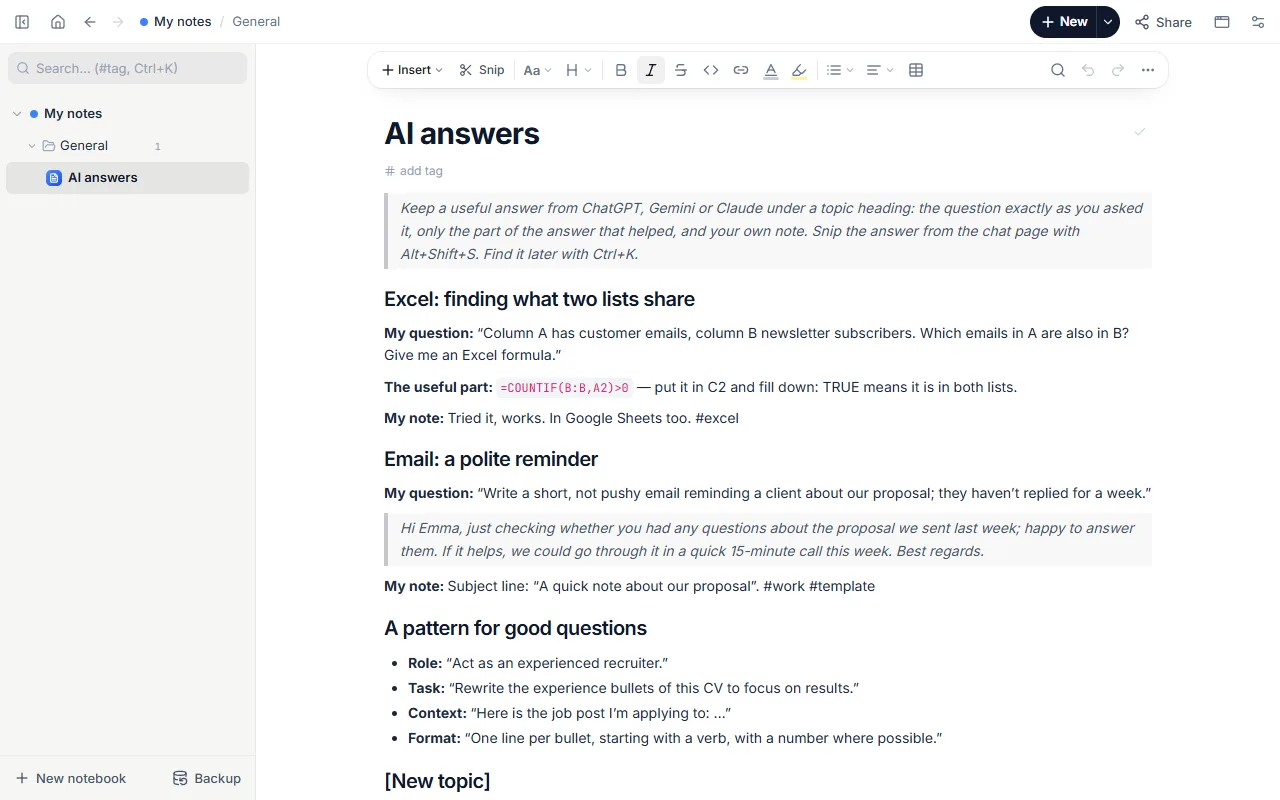
- Two example topics: an Excel formula for comparing two lists and a polite reminder email
- The question, the useful part of the answer and your note for each
- A pattern for good questions: role, task, context, format
- An empty topic to fill in
How to use it
- Open the template and title the first topic.
- Save the prompt that worked as it is; you’ll reuse it.
- Snip or paste only the useful part of the answer.
- Add your note below: did you check it, where will you use it?
Tips that help
- Keep the prompt too: the quickest way to a good answer again is the same question.
- Check answers with numbers, dates or sources before using them, and note that you did.
- Use tags (#code, #work, #study): search finds them in a second.
Questions
Does it import chats automatically?
No; you choose what to keep. With the extension, snipping an answer from the chat page takes one shortcut.
Is it free? Do I need an account?
Free, and no account. “Start with this template” opens it in the WebPad Studio web version, ready to write in.
Where is what I write saved?
In your browser’s own storage, on your device only. If you like, back it up to your own Google Drive and sync it across devices; there is no server of ours.
Can I download it as PDF or Word?
Yes. Text pages download as PDF and Word, drawings save as images, and you can share a page with a link.